Highlighters Overview
ADBLogger introduces a dynamic Highlighters feature, designed to enhance your log viewing experience by marking important text in real-time. Spot critical information quickly by applying a background color to specific text patterns in your logs.
Utilizing Highlighters
Highlighters color the background of text in log messages that meet specified criteria, making them stand out in the stream of log output.
Accessing Highlighters
- Activate the Highlighters panel by clicking the Highlighters toggle in the console toolbar.
- Highlighter configurations are directly editable within the list view for convenience and immediate feedback.
Creating a New Highlighter
Direct List Editing:
- Click the [+] button at the top of the highlighters list to add a new blank entry.
- Enter the text you wish to highlight and select a background color.
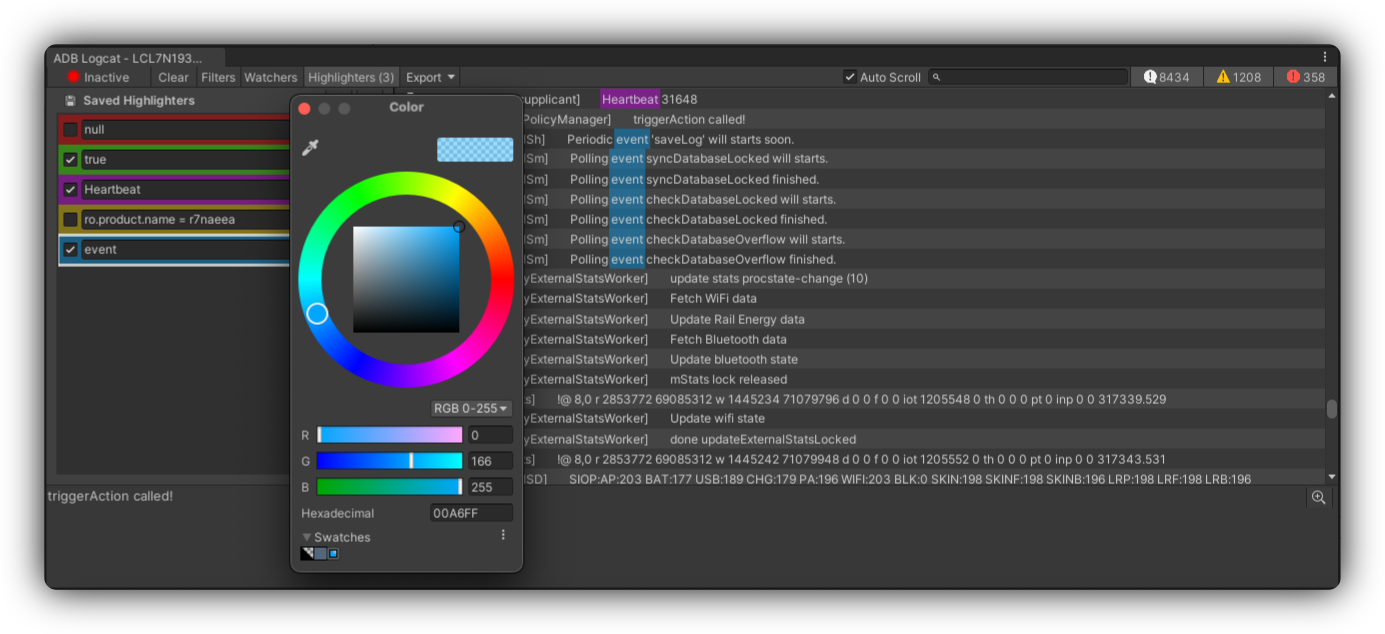
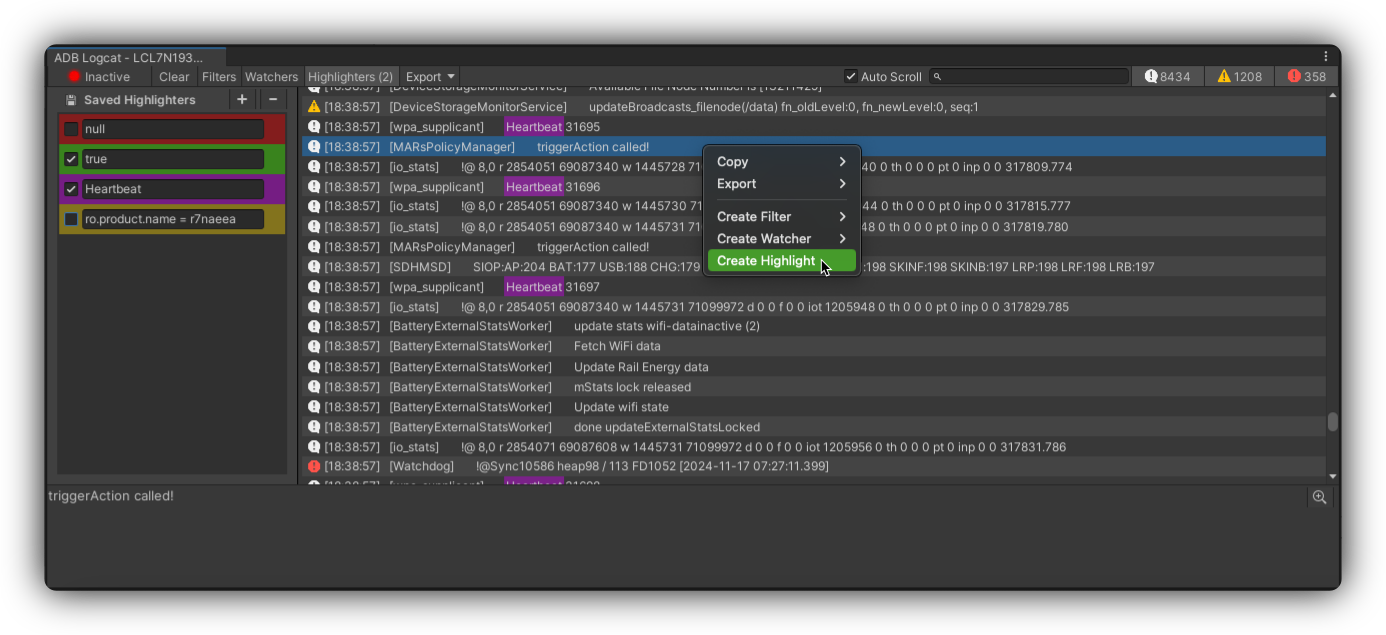
Contextual Menu Shortcut:
- Right-click on a log entry and select Create Highlighter. This automatically creates a highlighter for the selected text with a default background color you can adjust.
Editing and Deleting Highlighters
| Action | How |
|---|---|
| Edit | Click into the text field or color picker for the highlighter you want to modify |
| Delete | Click the delete option (trash bin icon) next to the highlighter |
Highlighter Customization
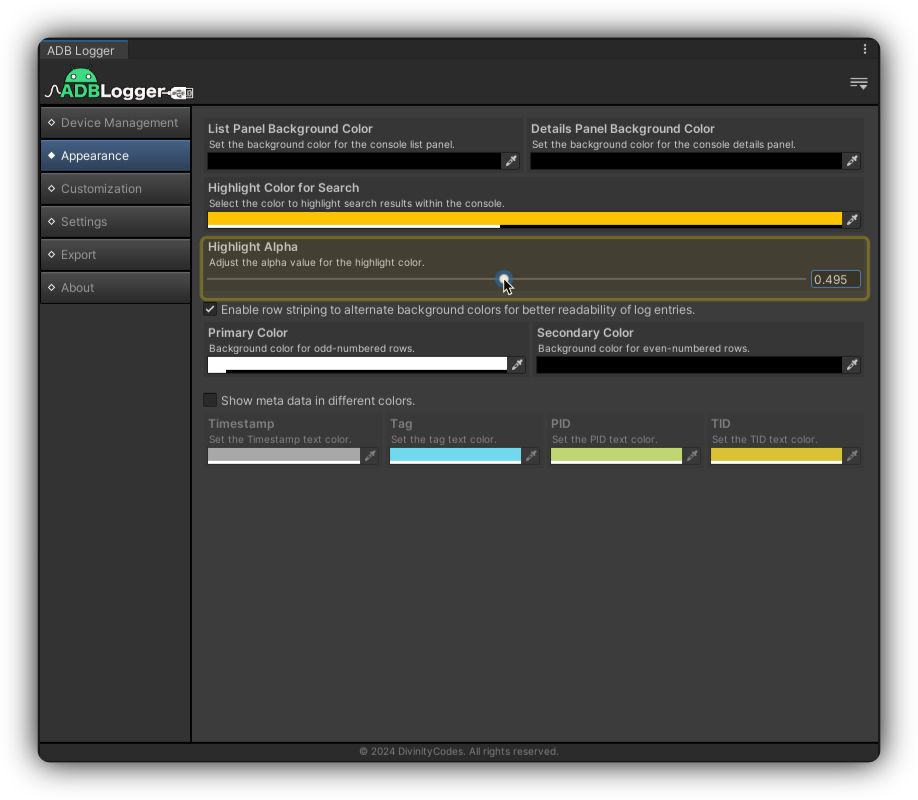
Color Opacity: Adjust the opacity of highlighter colors via a slider in the Appearance category of the main panel.
Best Practices
- Use Descriptive Text: Choose text patterns unique to the information you need to track.
- Color Coding: Use different colors for different types of information to differentiate log categories visually.
Use highlighters with filters and watchers, or return to the console overview.
For more detailed instructions, consult our Support section or review the FAQ.